The CNC Toolkit
Free and open-source CAM plugin.
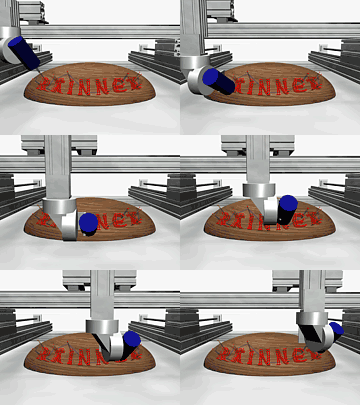
The CNC Toolkit enables creative and effective use of multi-axis computer controlled machinery.
It does this
by taking advantage of 3D Studio Max's (and its variants, including GMAX which is also free) ability to model the kinematics of complex mechanical systems. Although written as a CAM plugin for CNC mills and routers, the CNC Toolkit is probably best thought of as a collection of utilities to help users
produce, edit, import and export the machine control codes for general automation, mechatronic, hexapod, robotic and animatronic applications. The source code is freely available under the GPL licence if you wish to develop your own modules and post-processors.
The CNC Toolkit was initialy developed for use with the various 3, 4 and 5 axis CNC machines which I have designed, built and retrofitted to assist in the creation of our jewellery and craft products.
With this background, the software has evolved with an emphasis on being able to work creatively, flexibly and more efficiently through complete control of the toolpath. A lot of design freedom comes from creating the toolpath directly and this has helped harness the potential of our CNC machinery as more of an extension of and supplement to traditional 'hand crafted' methods rather than as a replacement.

You can contact me, Rab Gordon, via our contact page if you would like to discuss programming, consultancy, etc.
Download the CNC Toolkit and source code
CNC-Toolkit Blog
Support Forum
Videos of the CNC Toolkit in action
Please check out
the manual for the CNC Toolkit at: www.cnc4free.org
There are plans for making your own 5-axis router available from: www.doughtydrive.com